
The Bottom Line Up Front: The hardest part of digital inspections is not the app on the driver's phone — it is whether the checklist behind that app matches the machine in front of the driver. PTI4YOU is built around configurable vehicle types and item groups: every asset class gets its own checklist, every item can be required or optional and tagged visual or functional, trailer damage is recorded against a specific side of the unit, and photos flow through a server-side thumbnail pipeline that keeps the app fast on jobsite LTE. This walkthrough shows how each of those pieces works and why they matter when you are comparing custom DVIR checklist software.
Key Takeaways: What a Real Checklist Builder Gives You
- Universal templates do not survive contact with a specialized fleet: a reefer needs temperature checks, a tanker needs valve checks, and a form that asks both the same questions gets rubber-stamped.
- Configuration happens at the vehicle-type level: administrators assign item groups per type, so the driver's phone only ever shows questions that exist on that unit.
- Visual and functional are different certifications: tagging each item tells the driver whether to look or to operate, and tells the reviewer what the OK actually means.
- Engineering details show up as speed: server-side thumbnail generation is why a photo-heavy inspection list opens instantly on a weak mobile connection instead of spinning.
There Is No Such Thing as a Universal Checklist
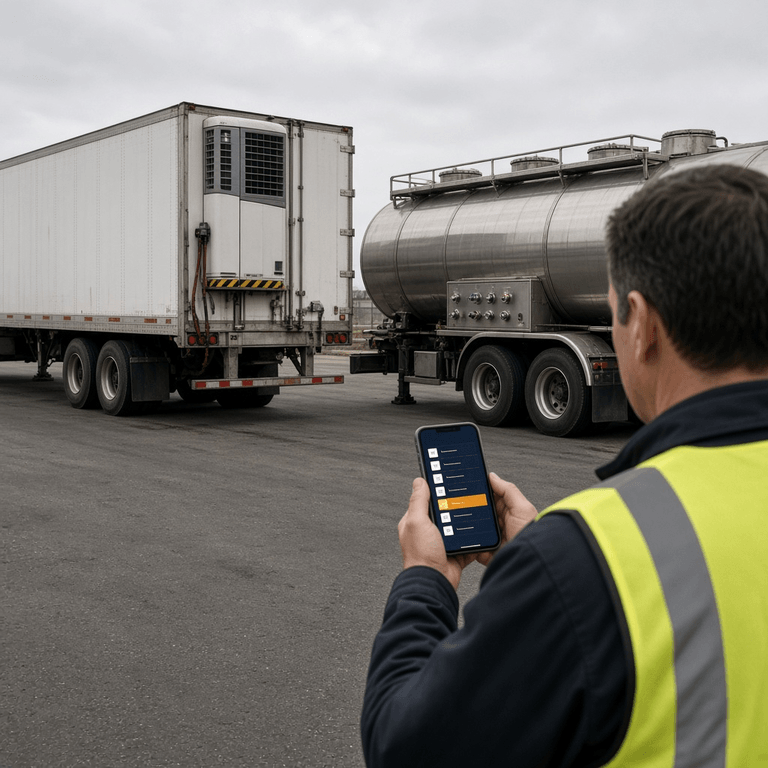
Put a refrigerated trailer and a fuel tanker side by side in the same yard and walk around both. The reefer lives or dies by its refrigeration unit: fuel level in the reefer tank, pre-cool temperature against the load sheet, door seals that actually seal, drain tubes that are not blocked. The tanker could not care less about any of that. Its morning questions are about valve seating, manhole covers and gaskets, venting, bonding and grounding connections, and whether the emergency shutoff moves the way it should.
Now hand both drivers the same fourteen-line inspection form. Whatever you wrote on it, roughly half of it is noise for one of them. The reefer driver answers valve questions that do not exist on his trailer; the tanker driver finds no line at all for the component most likely to put her out of service. Both learn, within a week, that the form is not really about their machine — and a form that is not about the machine gets tapped through without looking. We documented where that behavior ends up in our guide to stopping pencil whipping with digital DVIR enforcement.
The regulatory baseline does not change, of course. For commercial motor vehicles, 49 CFR 396.11 defines the parts and accessories a driver vehicle inspection report has to cover — brakes, steering, lights, tires, horn, mirrors, coupling devices, wheels, emergency equipment — and 49 CFR 396.13 covers the driver's review before the next trip. A custom checklist is not a way around those items. It is everything your operation needs on top of them, organized so the right questions land on the right unit.
What Rigid Templates Actually Cost You
Most inspection platforms were designed around one archetype — the on-road tractor-trailer — and everything else is an afterthought. Browse the reviews on software directories such as Capterra's fleet management category or G2's fleet management listings and a recurring complaint stands out: the forms cannot be changed, or changing them requires a support ticket and a week of waiting. The software works until the fleet stops looking like the demo fleet.
The cost of that rigidity shows up in three places:
- Data you cannot use. When an excavator or a tanker is inspected against a dry-van form, the answers are technically recorded and practically meaningless. The defect that matters was never asked about.
- Driver trust you cannot rebuild. The first time a driver reports a real problem and the form has nowhere to put it, the lesson sticks: this system is for the office, not for me.
- Workarounds that multiply. Paper supplements, group texts with photos, a side spreadsheet for the specialized units — each one is a record that will not be found when an auditor, adjuster, or attorney asks for it.
We walked through a full before-and-after of this problem in our construction fleet custom checklists case study, where a 22-asset contractor ran excavators and generators through one platform. This article is the companion piece: not the story, but the machinery that makes the story possible.
Under the Hood: Vehicle Types and Item Groups
In PTI4YOU, a checklist is not a flat form. It is a set of item groups attached to a vehicle type. The administrator creates or selects a type — flatbed, open top, reefer, tanker, or “Other / Specialized” for anything beyond the built-ins — and assigns the groups of inspection items that belong to that type. Every unit registered under the type inherits its checklist automatically, on every driver's device, with no app update and no retraining.
Here is what that flow looks like from the administrator's chair. You sign in to the web console, open the fleet configuration area, and create a new vehicle type for, say, your refrigerated trailers. The DOT baseline items are already there. You then add the groups that make a reefer a reefer: a refrigeration unit group with items for fuel level, pre-cool temperature, and alarm codes; a doors and seals group; a drains and interior group. Each item takes a name, a check type, and a required flag. Save, and every reefer in the fleet presents the new checklist on the next inspection.
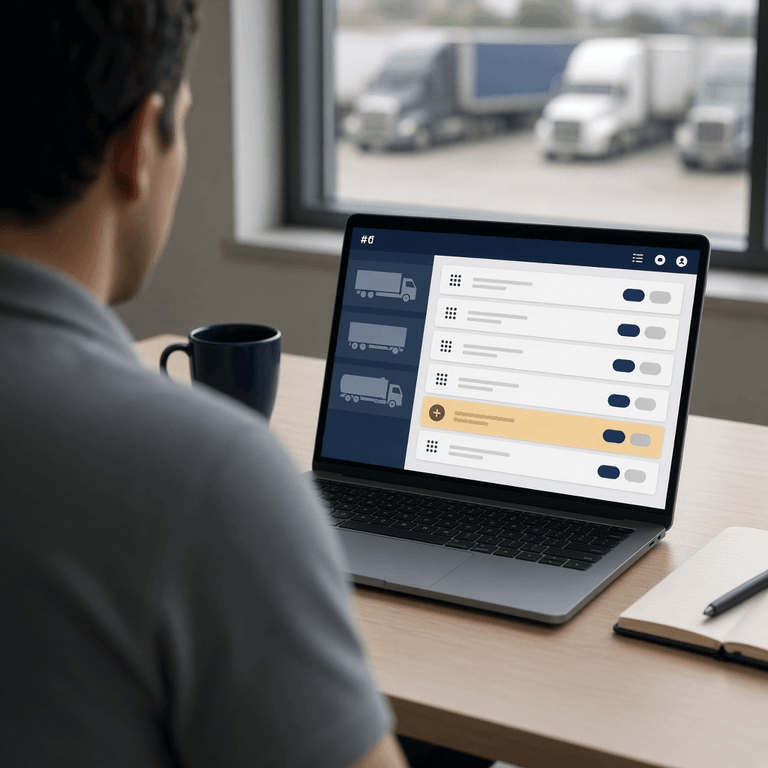
The item-group model matters more than it first appears, for two reasons. First, groups are reusable: the coupling and kingpin group you build once can be attached to every trailer type you run, so a fix or an addition propagates everywhere at once. Second, groups keep the driver's screen organized in walkaround order rather than regulation order — the same principle that let the contractor in our case study order the excavator checklist the way an operator actually circles the machine. If your fleet spans semis and construction equipment, our overview of customizing digital inspections from semi-trucks to construction equipment shows how far the same model stretches.
Want to See the Builder With Your Own Asset List?
Bring your strangest unit — the yard mule, the pup trailer, the tanker with the custom manifold — and we will build its checklist live during the demo, item group by item group.
Book a Configuration DemoNo credit card required. Your checklists stay yours if you leave.
Required vs. Optional, Visual vs. Functional
Two small switches on every item do most of the quality control, and they are worth understanding before you evaluate any electronic DVIR configuration tool.
Required or optional
A required item must be answered before the inspection can be submitted. These are your blocking checks — brakes, steering, the reefer temperature on a loaded trailer. An optional item records useful detail without holding the driver hostage: interior cleanliness, a cosmetic scuff, the spare straps count. The distinction sounds trivial until you have seen the alternative. Make everything required and drivers learn to tap fast; make everything optional and the one answer you needed is missing. The mix is a policy decision, and the builder puts it in the administrator's hands rather than the vendor's.
Visual or functional
Each item also carries a check type. A visual check is confirmed by looking: no chafing on the hose, no cracks at the weld, no fluid under the unit. A functional check is confirmed by operating the component: cycle the valve, apply the service brake, test the horn, run the liftgate through a full cycle. The driver sees the tag on each line, so there is no ambiguity about whether “OK” means it looked fine or I tested it and it worked. Your shop foreman and your insurance adjuster will care about the difference, and so will a hearing officer if an inspection record ever becomes evidence.

These two switches are also how a custom checklist supports training. A new hire's first week can run with more required items and more functional checks; once the habit is built, the list can relax to its production shape. Pair that with the onboarding flow we describe in training new CDL hires on eDVIRs in under 30 minutes and the checklist itself becomes the training material.
Side-Aware Damage Reporting: Front, Back, Left, Right
Trailers take damage on a specific panel, not “somewhere on the unit.” PTI4YOU records trailer condition against the side of the vehicle — front, back, left, right — so a report says left side, lower rail, behind the landing gear instead of a free-text guess. When the driver flags damage, the app asks which side, prompts for photos, and files the defect under that zone.
This sounds like a small UX choice. It is actually a dispute-resolution feature. Drop-and-hook operations live and die by who-dented-what-when: a trailer passes through three drivers and two yards in a week, and when the dent is discovered, everyone remembers it differently. A side-tagged, time-stamped, photographed record from each hookup settles the question in seconds. We cover the hand-off problem in detail in our guide to managing DVIRs for truck and trailer combinations; side-aware reporting is the mechanism underneath it.

The Photo Pipeline: Why the App Stays Fast on Bad Signal
Photo evidence only works if drivers actually attach photos, and drivers only attach photos if the app does not punish them for it. PTI4YOU handles this with a server-side thumbnail pipeline: full-resolution images upload in the background, the server generates small thumbnails after upload, and every list view in the app renders those thumbnails instead of the originals. The result is an inspection history that opens instantly on yard Wi-Fi, jobsite LTE, or one bar in a rural scale house — the full image downloads only when someone taps into it.
It is worth pausing on why this is done on the server rather than the phone. Client-side thumbnailing burns the driver's battery and produces inconsistent sizes across a fleet of mismatched personal devices — a real concern for a BYOD platform where the hardware is whatever the driver already carries. Server-side generation means one consistent pipeline, one predictable thumbnail size, and a mobile app whose job stays simple: capture, queue, upload when connectivity allows. The same design is why offline inspections work — the report and its photos sit in the queue on the device and reconcile with the server when the signal returns.
For a mechanic scrolling a defect queue or a safety manager reviewing last month's reports, the practical difference is dramatic: a list of fifty photo-backed inspections loads as a few hundred kilobytes of thumbnails rather than a half-gigabyte of originals. Speed is a feature, and in inspection software it is a compliance feature, because slow software is software people stop using. The mechanics' side of that workflow — repair verification against the photo record — is covered in our comparison of PMI and DVIR workflows.
Build a Checklist for a New Vehicle Type in Minutes
Here is the end-to-end process, the way we walk new administrators through it. If you have ever waited a week for a vendor to edit a form, this is the part to compare:
- Duplicate the nearest template. Start from the built-in type closest to the new unit — or copy the checklist of a similar type you already configured — so the DOT baseline carries over untouched.
- Add the specialized item groups. Create groups for what makes the unit different: refrigeration unit, tank valves and venting, liftgate, PTO, crane controls. Pull the items from the manufacturer's operator manual, not from memory.
- Set the two switches on each item. Required or optional; visual or functional. Default to required for anything that can put the unit out of service, functional for anything with a moving part.
- Assign the type to the units. Every vehicle registered under the type picks up the checklist immediately — on every driver device, with no reinstall.
- Run it and refine at 30 days. Cut always-N/A items, add a line for any defect that arrived without a matching question, and let the data shape the list.
Steps one through four genuinely take minutes. Step five is where good fleets separate from compliant ones, and it costs nothing but attention. Seasonal variants work the same way — the Winter Ops item group we describe in our cold-weather pre-trip inspection checklist is attached in October and detached in April, without touching the rest of the template.
The Anatomy of a Perfect Inspection Checklist (PDF Guide)
A compact guide to designing asset-specific checklists: how many items is too many, which checks should be functional, where photo requirements belong, and worked examples for reefers, tankers, flatbeds, and heavy equipment.
Request the PDF GuideDelivered by email. No credit card required.
Rigid Templates vs. a Configurable Builder
When you are evaluating custom DVIR checklist software side by side, the configurability questions tend to be the ones the sales deck skips. This table is the checklist for the checklists:
| Capability | Rigid Template Platform | Configurable Builder (PTI4YOU) |
|---|---|---|
| Checklist per asset type | One form, or vendor-edited variants on request | Administrator creates vehicle types and assigns item groups per type |
| Who edits the form | Vendor support ticket, days to weeks | Your fleet manager, deployed to all devices in minutes |
| Required vs. optional items | Usually all-or-nothing | Set per item; required items block submission |
| Visual vs. functional check types | Rarely distinguished | Tagged per item, visible to driver and reviewer |
| Trailer damage location | Free-text notes | Side-aware zones (front, back, left, right) with photos |
| Photo performance on slow networks | Full-size images in lists; slow or skipped | Server-side thumbnails; lists stay fast, originals on demand |
| Hardware requirement | Often tied to proprietary tablets or ELD hardware | BYOD — drivers' own phones, offline-capable |
Pricing is the other half of the evaluation, and it interacts with configurability more than most buyers expect: a platform that charges per asset quietly discourages you from tracking the specialized units that most need custom checklists. We covered that dynamic in the per-asset pricing trap and in our small-fleet comparison of Whip Around, Motive, and Samsara. Configurability you cannot afford to apply to the whole fleet is not configurability.
Frequently Asked Questions
Can I require specific photos for certain inspection items?
Yes. Advanced digital inspection builders allow administrators to set condition boundaries, mandating photo evidence when an item is flagged with specific defect statuses such as “immediate attention.” In PTI4YOU, a defect prompts the operator for a photo and a note, so the shop sees the actual hose, valve, or dent rather than a one-word description.
How long does it take to build a custom inspection checklist for a new vehicle type?
Using modern SaaS configuration tools, a fleet manager can duplicate a base template, add specialized component checks, and deploy it to all driver devices in minutes. The practical time sink is deciding what belongs on the list, which is why we recommend drafting from the manufacturer's operator manual with your shop foreman.
What is the difference between a visual and a functional inspection check?
A visual check confirms condition by looking: no cracks, no leaks, no chafing, nothing missing. A functional check confirms operation by doing: cycle the valve, test the lights, apply the brakes, sound the horn. PTI4YOU lets administrators tag each checklist item as visual or functional so drivers know whether to look or to operate, and reviewers know what the OK actually certifies.
Does a custom checklist still satisfy FMCSA DVIR requirements?
Yes, as long as the required categories are present. 49 CFR 396.11 requires the report to cover parts and accessories such as service brakes, parking brake, steering mechanism, lighting devices, tires, horn, windshield wipers, rear vision mirrors, coupling devices, wheels and rims, and emergency equipment. A custom checklist adds your specialized items on top of that baseline rather than replacing it. The signature and review loop is covered in our guide to the FMCSA 396.11 three-signature cycle.
Can one fleet run different checklists for trucks, reefers, and tankers at the same time?
Yes. In PTI4YOU each vehicle type carries its own set of item groups, so a reefer trailer presents temperature and refrigeration-unit checks, a tanker presents valve and venting checks, and a dry van presents neither. Drivers only ever see the checklist that belongs to the unit in front of them.
How does the app stay fast when inspections include lots of photos?
PTI4YOU generates image thumbnails on the server after upload. The mobile app lists inspections using those small thumbnails instead of full-resolution photos, so reports open quickly even on a weak LTE connection in a yard, and the full image is only downloaded when someone taps into it.
Conclusion: Configurability Is the Feature Under Every Other Feature
Dashboards, reminders, signatures, and reports all sit on top of the same foundation: the questions your drivers are asked each morning. If those questions do not match the machine, nothing built on top of them can be trusted. That is why the checklist builder — vehicle types, item groups, required and optional flags, visual and functional tags, side-aware damage zones, and a photo pipeline that respects a weak signal — is the part of an inspection platform worth examining hardest before you buy.
PTI4YOU was engineered so that the person who knows the fleet configures the fleet: your manager, your shop foreman, your rules, deployed to every driver's phone in minutes. If your yard holds anything more specialized than a dry van, the fastest way to evaluate us is to watch your own strangest unit get its own checklist.
Build Your First Custom Checklist This Week
Start a trial, open the builder, and configure a checklist for your most specialized asset. If it does not fit your fleet better than the form you use today, you will know within one morning's inspections.
Start your 15-day free trial today. No credit card required.
Start Your Free TrialZero setup fees. Zero hardware. Checklists configured by you, not by a support queue.
Official Sources and Further Reading
- eCFR — 49 CFR 396.11: Driver vehicle inspection report(s)
- eCFR — 49 CFR 396.13: Driver inspection
- Capterra — Fleet Management Software category and user reviews
- G2 — Fleet Management software listings and user reviews
Regulatory references reflect the eCFR text available as of October 31, 2026. Regulations change, and this article is general information rather than legal advice.